How do I print photos?

Choose the site language

Use PrintFun on a Windows computer connected to the printer by USB or network. In the online workflow, PrintFun needs internet access; offline capture in PhotoFun Capture for Windows, prepared beforehand with internet access, can print through a local connection to PrintFun. Capture can run on that computer or another device; PrintFun is installed separately.
  1. Sign in and click Start (the house icon) in the site menu. On mobile, it is in the bottom bar. On that page, find Capture and printing apps.
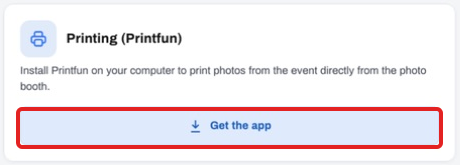
  2. On the Printing (Printfun) card, click Get the app.
    Where to get PrintFun
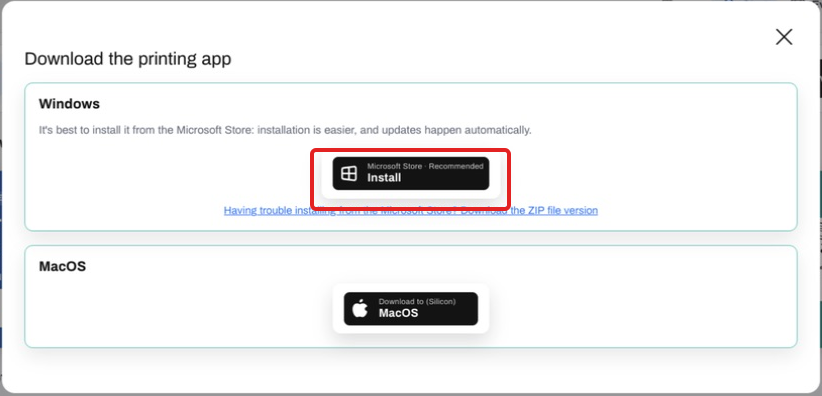
  3. Prefer the Microsoft Store installation. If the Store does not work, use the ZIP alternative, extract the folder and open the app.
    Install from the Microsoft Store
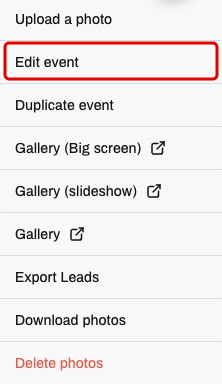
  4. In Events, open the event → Options → Edit event. Under Printing, select On demand or Automatic to suit your workflow, then click Save event.
    Open Edit event
    Save event
  5. Open PrintFun and check the event to print. In current setup, select the printer, select Continue, choose paper after automatic lookup and complete guided adjustment. Confirm each received sheet and test before the event. If the installed screen differs, provide the app version.
  6. Use the current PrintFun installation rather than old shortcuts. PhotoFun Capture and PrintFun are updated separately.
View all guides