Como criar seus efeitos
Aprenda a criar efeitos PhotoFun e com modelos externos para o seu evento.
Encontre orientações para começar, configurar seu evento e resolver dúvidas durante o uso.
Nenhuma pergunta encontrada. Tente outra palavra ou fale com o suporte abaixo.

Consulte os valores e as opções disponíveis em https://photofun.ai/home#pricing. Confira o período e a quantidade de dispositivos antes de contratar.
Os planos dão acesso à geração ilimitada nos efeitos inclusos, sem cobrança por foto, durante a validade da licença e para a quantidade de dispositivos contratada. Efeitos com modelos externos usando chave própria são pagos diretamente ao provedor, mesmo com um plano ativo.
Acesse sua conta e abra a opção Planos. Confira as condições exibidas, escolha o plano e siga as etapas de contratação.
Nos planos mensal e anual, o pagamento por cartão tem renovação automática; por PIX, a renovação é manual. A diária é um acesso único de 24 horas, sem renovação automática.
Na contratação, confira a quantidade de dispositivos que poderão capturar ao mesmo tempo. Se você já tem um plano e precisa ampliar essa quantidade, consulte as opções em Planos ou peça ajuda ao suporte.
Aceitamos PIX e cartão de crédito.
PIX: A renovação do plano é manual. Ou seja, após acabar o período contratado (mês/ano), você terá que realizar o pagamento manualmente.
Cartão de Crédito: A renovação é automática, como uma assinatura, seja mensal ou anual.
Plano Diária (24h): é um acesso único de 24 horas, sem renovação. Pra usar de novo, é só contratar outra diária.
PIX: Basta não realizar o pagamento da próxima renovação e o plano será automaticamente cancelado ao final do período.
Cartão de Crédito: Se solicitar o cancelamento pelo site, você poderá utilizar o plano até o final do período contratado, sem novas cobranças.
Plano Diária (24h): não precisa cancelar. É um acesso único que expira sozinho depois de 24 horas, sem cobranças futuras.
Sim. Emitimos Nota Fiscal de Serviço eletrônica (NFSe) referente às assinaturas e pagamentos. Se você precisa da nota com os dados da sua empresa (CNPJ), informe-os no contato com o suporte para que ela seja emitida corretamente. Válido para o Brasil.
Entre em contato com o suporte e informe qual contratação ou cobrança precisa de análise. A equipe verificará seu caso e orientará os próximos passos.
É um acesso único de 24 horas, sem renovação automática. Consulte o preço e as condições atuais em https://photofun.ai/home#pricing antes de contratar.
Para tirar fotos no iPhone ou iPad, instale o aplicativo PhotoFun pela App Store. Entre na sua conta em https://photofun.ai/panel_home. Em Apps de captura e impressão, localize o cartão Captura e toque em Obter o app. Na seção Celular e tablet, toque em App Store e conclua a instalação. Depois abra o PhotoFun e acesse seu evento para fazer uma foto de teste. A captura pelo navegador também é uma alternativa, mas o caminho de instalação no iPhone é pela App Store.
Para capturar no celular ou tablet Android, instale o aplicativo PhotoFun pelo Google Play. Entre na sua conta em https://photofun.ai/panel_home. Em Apps de captura e impressão, no cartão Captura, toque em Obter o app. Na seção Celular e tablet, toque em Google Play e conclua a instalação. Depois abra o PhotoFun e acesse seu evento para fazer uma foto de teste. Também pode usar o navegador; se houver dificuldade no Chrome, tente Firefox. TVs e monitores Android precisam de avaliação específica.
A captura pode ser feita pelo navegador ou pelo app compatível com seu equipamento. O PrintFun é um aplicativo separado, usado no computador responsável pela impressão.
O app PhotoFun para Windows permite conexão direta de câmeras Canon compatíveis por USB. No navegador, a câmera precisa ser reconhecida como webcam, um caminho diferente que pode depender do software do fabricante.
O que determina o caminho de uso é o computador ou aparelho, o sistema operacional e a câmera que estão dentro do equipamento. Informe esses dados para conferirmos a opção adequada, especialmente se for uma montagem diferente de celular, tablet ou computador convencional.
Entre na sua conta em https://photofun.ai/panel_home. Em Apps de captura e impressão, localize o cartão Captura e clique em Obter o app. Na seção Windows (com suporte DSLR), clique em Instalar pela Microsoft Store, a opção recomendada por facilitar a instalação e as atualizações automáticas. Conclua a instalação na loja e abra o PhotoFun para acessar seu evento e testar a captura. Use o link da versão ZIP somente se não conseguir instalar pela Microsoft Store; extraia a pasta antes de executar. O aplicativo de captura é diferente do PrintFun, usado para impressão.
A PhotoFun é um software para criar eventos, capturar fotos, aplicar efeitos e entregar os resultados aos participantes. Você utiliza seu próprio equipamento compatível, como celular, tablet ou computador.
Crie sua conta, acesse Eventos e escolha Criar novo evento. Configure o evento e faça uma primeira foto de teste no aparelho que pretende usar.
Comece pelo nome, datas, formato da foto e uso de efeitos de IA. Escolha também se haverá impressão ou apenas entrega digital e salve o evento.
Abra o evento no aparelho de captura e acesse a câmera. Faça uma foto de teste para conferir o enquadramento e as opções que você configurou.
Você pode pedir uma apresentação com ajuda na configuração. Envie duas ou três opções de data e horário, indicando seu fuso; a equipe trabalha no horário de São Paulo e confirmará uma das opções.
Sim. Acesse o nosso material de divulgação para visualizar o nosso portfólio completo.
A solução está sendo desenvolvida pela Devesch Desenvolvimento de Software Ltda., com sede em Porto Alegre. Nossa equipe é composta por profissionais experientes em criar sistemas e aplicativos para projetos próprios, parceiros, agências de marketing e empresas. Para mais informações, acesse: https://devesch.com.br
Existe uma modalidade de evento online em que os participantes acessam um link para capturar no próprio aparelho. Fale com a equipe para avaliar a duração, o público e as condições dessa modalidade.
O foco da PhotoFun é a captura de fotos e os efeitos de IA. Para uma necessidade diferente desse fluxo, consulte a equipe antes de planejar seu evento.
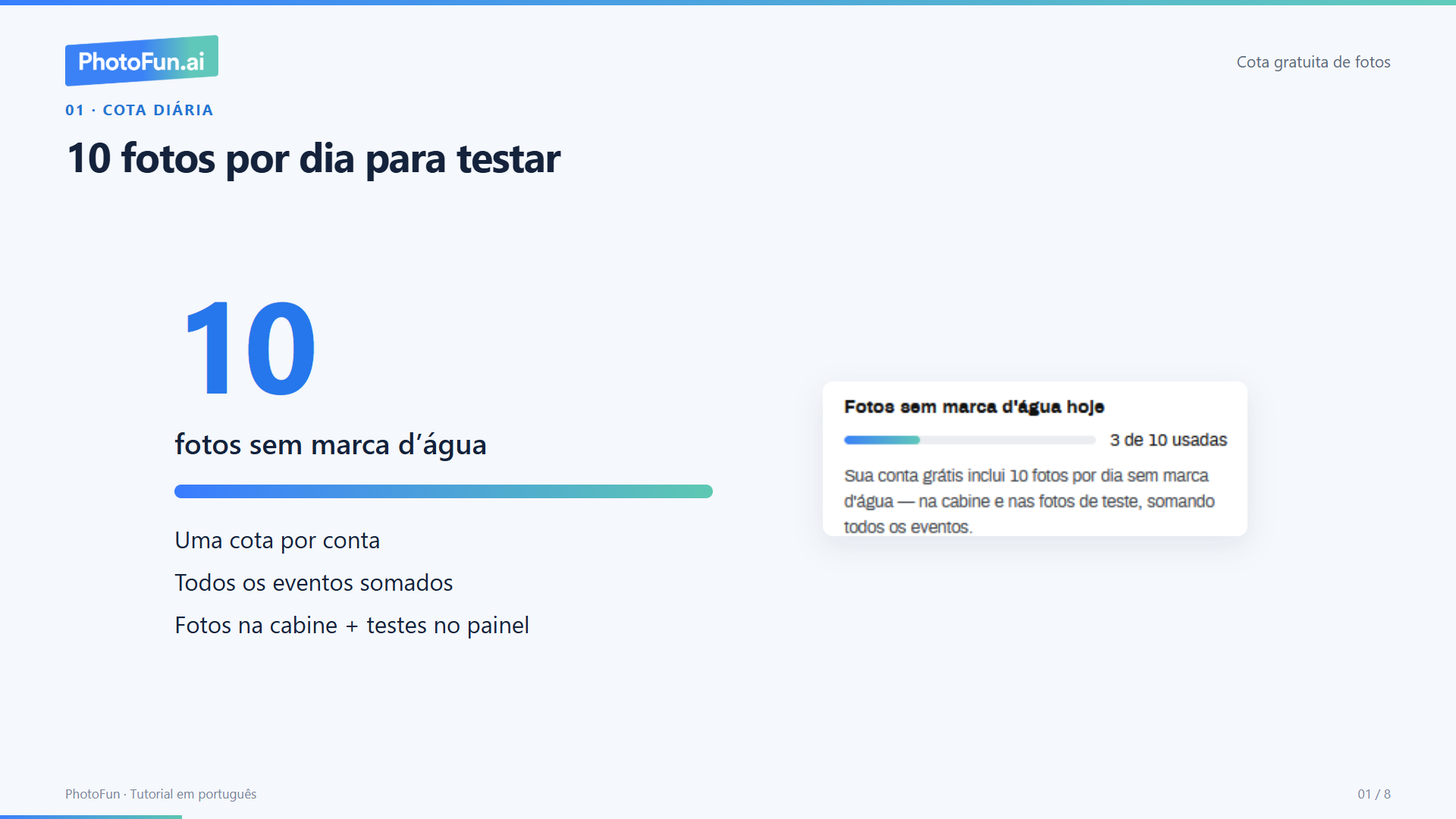
Crie sua conta e experimente o software grátis. Você tem até 10 fotos por dia sem marca d’água nos efeitos inclusos, por conta. A cota renova à meia-noite, no horário de Brasília. Após esse limite, as fotos geradas com os efeitos inclusos recebem marca d’água, a menos que você tenha um plano ativo.
Eventos sem IA continuam gratuitos, ilimitados e sem marca d’água. Gerações com modelos externos usando sua chave são pagas diretamente ao provedor e, sem troca de fundo, não consomem a cota gratuita nem recebem marca d’água da PhotoFun. Se você ativar a troca de fundo, a foto passa a usar a cota diária. Sem plano ativo, após esgotar essa cota, a foto recebe marca d’água mesmo com a geração paga ao provedor.
Você pode criar sua conta e preparar um evento para testar antes de contratar. Faça uma foto para conferir como o sistema funciona no seu equipamento.
Crie sua conta e experimente o software grátis. Você tem até 10 fotos por dia sem marca d’água nos efeitos inclusos, por conta. A cota renova à meia-noite, no horário de Brasília. Após esse limite, as fotos geradas com os efeitos inclusos recebem marca d’água, a menos que você tenha um plano ativo.
Eventos sem IA continuam gratuitos, ilimitados e sem marca d’água. Gerações com modelos externos usando sua chave são pagas diretamente ao provedor e, sem troca de fundo, não consomem a cota gratuita nem recebem marca d’água da PhotoFun. Se você ativar a troca de fundo, a foto passa a usar a cota diária. Sem plano ativo, após esgotar essa cota, a foto recebe marca d’água mesmo com a geração paga ao provedor.
Você pode testar pelo app compatível com seu aparelho. Use o equipamento que pretende levar ao evento para conferir captura, resultado e entrega.
Crie sua conta e experimente o software grátis. Você tem até 10 fotos por dia sem marca d’água nos efeitos inclusos, por conta. A cota renova à meia-noite, no horário de Brasília. Após esse limite, as fotos geradas com os efeitos inclusos recebem marca d’água, a menos que você tenha um plano ativo.
Eventos sem IA continuam gratuitos, ilimitados e sem marca d’água. Gerações com modelos externos usando sua chave são pagas diretamente ao provedor e, sem troca de fundo, não consomem a cota gratuita nem recebem marca d’água da PhotoFun. Se você ativar a troca de fundo, a foto passa a usar a cota diária. Sem plano ativo, após esgotar essa cota, a foto recebe marca d’água mesmo com a geração paga ao provedor.
A impressão é feita pelo PrintFun, separado do aplicativo de captura. Confira se ele está conectado ao evento correto e à impressora que será usada.
Entre na sua conta PhotoFun e abra a página inicial do painel: https://photofun.ai/panel_home. Na opção de impressão, abra o download do PrintFun e prefira instalar pela Microsoft Store, que mantém o aplicativo instalado e permite atualizações automáticas. O arquivo ZIP é uma alternativa para quando não for possível instalar pela Store; nesse caso, extraia a pasta antes de executar e não espere as mesmas atualizações automáticas.
O aparelho de captura pode ser diferente do computador que imprime. Recomendamos o PrintFun no Windows, com a impressora conectada por USB ou rede; para Mac, consulte o suporte sobre a versão disponível.
Se a imagem digital está correta e o problema aparece apenas no papel, use a calibração do PrintFun: https://youtu.be/dWPyDoxu-3c. Depois faça uma impressão de teste para conferir o resultado.
Mesmo que você já tenha tentado calibrar, refaça a calibração no modo Moderno do PrintFun e faça uma impressão de teste para conferir a borda. Se já refez corretamente nesse modo e a borda continua, envie uma foto da folha inteira para o suporte avaliar, caso ainda não tenha enviado. Aproveitaremos as informações sobre aplicativo, sistema, impressora e papel que você já forneceu.
Ele é indicado para ajustes físicos como margens, alinhamento e tamanho no papel. Impressora desconectada, falha no corte da tirinha ou uma imagem que já está cortada no digital precisam de outro diagnóstico.
Impressora primária: é a impressora principal usada para todos os trabalhos de impressão. Você pode escolhê-la na tela de configurações; cada foto enviada vai primeiro para ela.
Impressora secundária: opção adicional para definir uma segunda impressora. Quando configurada e diferente da primária, o sistema já envia parte das cópias para ela caso você peça múltiplos exemplares, dividindo automaticamente a fila entre as duas impressoras.
Duplicar impressão: novo recurso que, quando marcado, manda o número total de cópias para as duas impressoras simultaneamente. Assim, se você solicitar 2 cópias e tiver primária e secundária distintas, cada uma imprimirá 2 cópias, oferecendo redundância ou produção paralela.
O PrintFun funciona com as principais impressoras fotográficas de sublimação, como DNP (DS-RX1 e DS-RX1 HS), Citizen (CX-02 e CZ-01) e Mitsubishi (D80), além de impressoras comuns de jato de tinta ou laser. A conexão pode ser via USB ou rede.
Em caso de dúvida sobre um modelo específico, entre em contato com o suporte antes do evento.
A moldura faz parte da apresentação da foto digital. A composição organiza como as fotos e a arte serão colocadas na impressão, por exemplo em tirinhas ou Polaroid.
Na criação ou edição do evento, escolha o formato da foto e a variação desejada. Confira o resultado em um teste antes de usar a configuração no evento.
Você pode preparar uma composição de impressão com sua arte e logo. Envie um PNG com transparência real nas áreas onde as fotos devem aparecer e use as dimensões indicadas para o formato do evento.
Confira se as áreas onde a foto deve aparecer são realmente transparentes, e não preenchidas de branco. Na composição de impressão, confira também se deseja sobrepor a arte ou encaixar a foto dentro dela.
Use as dimensões recomendadas na seção do evento em que você vai enviar a imagem. Para uma composição de impressão, o arquivo de exemplo ajuda a preparar o formato e as áreas transparentes corretas.
O fundo e a moldura são aplicados de acordo com a orientação do enquadramento da foto: retrato (vertical) usa a arte em retrato; paisagem (horizontal) usa a arte em paisagem. Se você enviou a arte em uma orientação e capturou na outra, ela não será aplicada. Capture na mesma orientação da arte ou envie uma versão correspondente ao enquadramento utilizado. Para usar as duas orientações, envie as duas versões e teste. Quando fundo ou moldura não aparecer, confira essa correspondência antes de repetir a ativação do efeito ou encaminhar ao suporte; se ainda não souber as orientações, pergunte sem tratar a divergência como confirmada.
Você pode escolher quais efeitos deseja habilitar como opções no evento. Faça um teste para conferir a seleção apresentada aos participantes.
Você pode criar quantos efeitos quiser e escolher quais ficarão habilitados no evento. Organize as opções de acordo com o público e o tema.
O sistema possui opções de profissões, e você também pode criar efeitos para os cursos que deseja apresentar. Usar a logo e as cores da faculdade ou do curso ajuda a dar identidade à experiência.
Você pode habilitar apenas os efeitos que quer oferecer naquele evento. Assim, a seleção fica adequada ao público e à proposta da ação.
Teste o efeito com fotos que representem as condições de captura e o público do evento. Confira o resultado antes de oferecê-lo aos participantes e procure o suporte se encontrar uma dificuldade.
Use uma imagem nítida que mostre o elemento que deseja aplicar, como uma roupa, estampa ou logotipo. Na instrução, explique o que deve ser usado e o que deve ser preservado na foto do participante. A imagem não precisa conter um rosto quando a referência for de roupa, objeto ou identidade visual. Para efeitos de troca de rosto, escolha uma imagem com o rosto visível e as formas humanas reconhecíveis. Teste o resultado com fotos representativas do público antes do evento.
Você pode criar seus próprios efeitos com modelos externos na opção Criar Efeito. Selecione Modelos externos e confira os provedores disponíveis e as condições de acesso. Quando usar sua própria chave de API, a geração é paga diretamente ao provedor. Para contratar a criação de um efeito pela equipe PhotoFun ou um projeto personalizado, entre em contato para avaliar escopo, prazos e orçamento. A contratação de produção sob medida não é necessária para criar seus próprios efeitos.
Modelos externos disponíveis: Meta · Google · OpenAI · xAI (Grok).
Com chave pessoal, você paga diretamente ao provedor, sem taxa de geração nem assinatura PhotoFun.
O MUSE (Meta) é cortesia da PhotoFun e não usa chave pessoal.
Para usar um provedor com sua chave:
Os preços, limites e a disponibilidade dependem do provedor. Uma assinatura de aplicativo de IA não substitui a conta de API necessária para essa conexão.
Efeitos sob medida
Nossa equipe cria efeitos para sua marca ou evento, com a entrega combinada com você.
Projetos e serviços personalizados
Analisamos as necessidades do cliente e adaptamos o software e a experiência no totem ou na cabine, incluindo fluxos e interações específicos.
Esses serviços são contratados separadamente. Escopo, prazos, condições de uso e valores são definidos em orçamento. A contratação de um serviço sob medida não é necessária para criar seus próprios efeitos com modelos externos usando chave de API.
Você pode oferecer entrega digital por QR code e galeria. O participante acessa o resultado pelo celular, conforme as opções configuradas no evento.
Na edição do evento, procure as interações após a captura e ative a apresentação do QR code de entrega digital. Salve e faça uma foto de teste para conferir a tela.
São opções diferentes. Você pode configurar o QR sobre as fotos e, separadamente, a exibição após a captura e nas páginas de entrega ou galerias.
Você pode usar as galerias Telão ou Slideshow do evento para exibir as fotos em outra tela. Escolha o modo de apresentação adequado e teste a exibição antes do evento.
O fluxo de entrega descrito aqui usa QR code e galeria. O WhatsApp do atendimento não significa que as fotos dos participantes serão enviadas automaticamente por esse canal.
No painel do evento, clique no botão de 3 pontinhos e selecione "Download". Você pode baixar ou copiar o link para enviar ao produtor.
Sim. Na aba "Página de Entrega", dentro de "Personalizar", você pode:
Para uma entrega totalmente white-label, sem a marca PhotoFun, é possível usar um domínio próprio. Fale com o suporte para configurar.
O QR code pode ser apresentado depois que a foto original é enviada, sem esperar a IA terminar. A versão com efeito fica disponível após o processamento.
O processamento de IA depende de conexão com a internet. Teste a conexão no local do evento e planeje uma alternativa caso ela fique indisponível.
Durante uma queda de internet, o app pode guardar as fotos capturadas e enviá-las quando a conexão voltar. O processamento de IA e a entrega digital dependem da conexão; esse recurso não torna a operação totalmente offline.
Não há um prazo único que possa ser garantido para todos os efeitos e condições. Se a espera parecer fora do normal, informe qual etapa ficou parada e se apareceu alguma mensagem de erro.
Descreva o que estava fazendo e envie a mensagem de erro ou uma imagem da tela, se houver. Informe também o aparelho e se estava usando o app ou o navegador, evitando incluir senhas ou códigos de acesso.
Avise ao suporte que o evento está em andamento e descreva o problema e as tentativas já feitas. A equipe precisa avaliar o caso; não é possível prometer atendimento imediato.
Atendemos via Whatsapp em horário comercial e email (através do nosso formulário de contato). Fora do horário comercial, buscamos fazer o melhor para atender dentro da disponibilidade da equipe. Não temos plantão noturno.
O limite depende da quantidade contratada no seu plano. Confira o limite e os aparelhos ativos na página de dispositivos conectados da sua conta.
Abra https://photofun.ai/panel_connected_devices depois de entrar na sua conta. Você também pode acessar essa página pelo indicador Dispositivos Online no evento.
Confira a lista de dispositivos conectados e identifique um aparelho que não esteja mais em uso. Use a opção Sair ao lado dele para liberar a vaga, tomando cuidado para não desconectar uma captura em andamento.
Encerre a captura no aparelho que não será mais usado e confira a lista de dispositivos conectados. Antes de iniciar no novo aparelho, verifique se há uma vaga disponível no limite do seu plano.
O PrintFun e o aplicativo de captura têm funções diferentes. Para verificar o consumo de vagas no seu caso, confira a lista de dispositivos e se esse computador também está com uma câmera de captura aberta.
Nossos arquivos e servidores estão hospedados no Brasil, utilizando a AWS, aplicando as melhores práticas em segurança, resiliência e escalabilidade. Embora residam no país, podem ser copiados para outras regiões para backup.
Você pode operar eventos simultâneos respeitando a quantidade de dispositivos de captura contratada. Confira o limite da sua conta antes de iniciar as capturas.
Você pode configurar um evento para uma instalação permanente. Mantenha a contratação adequada ao período de uso e respeite o limite de dispositivos simultâneos.
No Assistente IA, escolha Chamar no WhatsApp e confirme o nome e o número de quem vai continuar, mesmo que seja alguém da sua equipe. O histórico ficará disponível para o atendimento nesse número, sem alterar o telefone do cadastro.