How to Create Your Effects
Learn how to create PhotoFun effects and effects with external models for your event.
Find guidance on getting started, setting up your event, and resolving questions as you use the service.
No questions found. Try a different search term or contact support below.

See the prices and available options at https://photofun.ai/home#pricing. Check the term and the number of devices before signing up.
The plans provide access to unlimited generation with the included effects, with no per-photo charge, for the duration of the license and for the number of devices specified in the contract. Generation with external models using your own API key is paid directly to the provider, even with an active plan.
Log in to your account and select the "Plans" option. Review the terms displayed, choose a plan, and follow the sign-up steps.
For monthly and annual plans, card payments are automatically renewed; for PIX payments, renewal is manual. The daily pass provides a one-time 24-hour access, with no automatic renewal.
When signing up, check how many devices will be able to capture photos simultaneously. If you already have a plan and need to increase that number, review the options under "Plans" or contact support for assistance.
We accept PIX and credit cards.
PIX: Plan renewal is manual. In other words, once the contracted period (month/year) is over, you will have to make the payment manually.
Credit Card: Renewal is automatic, like a monthly or annual subscription.
Daily Plan (24 hours): This is a one-time 24-hour access pass that does not renew automatically. To use it again, simply purchase another daily pass.
PIX: Just don't pay for the next renewal and the plan will be automatically canceled at the end of the period.
Credit Card: If you request cancellation via the website, you can use the plan until the end of the contracted period, with no new charges.
Daily Plan (24 hours): No need to cancel. It's a one-time access pass that expires automatically after 24 hours, with no future charges.
Yes. We issue electronic service invoices (NFSe) for subscriptions and payments. If you need the invoice to include your company’s information (CNPJ), please provide it when contacting support so that it can be issued correctly. Valid for Brazil.
Please contact support and let us know which subscription or charge needs to be reviewed. The team will look into your case and guide you through the next steps.
This is a one-time, 24-hour access with no automatic renewal. Check the current price and terms at https://photofun.ai/home#pricing before signing up.
To take photos on your iPhone or iPad, install the PhotoFun app from the App Store. Sign in to your account at https://photofun.ai/panel_home. In the "Capture and Print" section, find the "Capture" card and tap "Get the app." In the "Phone and Tablet" section, tap "App Store" and complete the installation. Then open PhotoFun and go to your event to take a test photo. Capturing via a web browser is also an option, but on an iPhone, you’ll need to install the app from the App Store.
To take photos on your Android phone or tablet, install the PhotoFun app from Google Play. Sign in to your account at https://photofun.ai/panel_home. Under "Capture and Print Apps," on the "Capture" tab, tap "Get the app." In the "Cell Phone and Tablet" section, tap Google Play and complete the installation. Then open PhotoFun and go to your event to take a test photo. You can also use a web browser; if you have trouble with Chrome, try Firefox. Android TVs and monitors require a specific setup.
Photo capture can be done using your browser or an app compatible with your device. PrintFun is a separate application used on the computer responsible for printing.
The PhotoFun app for Windows allows you to connect compatible Canon cameras directly via USB. In the browser, the camera must be recognized as a webcam—a process that may vary depending on the manufacturer's software.
The path of use is determined by the computer or device, the operating system, and the camera built into the device. Please provide this information so we can determine the appropriate option, especially if the setup differs from that of a cell phone, tablet, or conventional computer.
Log in to your account at https://photofun.ai/panel_home. In the "Capture and Print" apps section, locate the "Capture" card and click "Get the app." In the "Windows (with DSLR support)" section, click "Install from the Microsoft Store"—this is the recommended option because it simplifies installation and enables automatic updates. Complete the installation from the Store and open PhotoFun to access your event and test the capture. Use the ZIP version link only if you are unable to install it from the Microsoft Store; extract the folder before running it. The capture app is different from PrintFun, which is used for printing.
PhotoFun is software for creating events, taking photos, applying effects, and delivering the results to participants. You use your own compatible device, such as a cell phone, tablet, or computer.
Create your account, go to Events, and select Create New Event. Set up the event and take a test photo on the device you plan to use.
Start by entering the name, dates, photo format, and whether to use AI effects. Also choose whether to print the photos or receive them digitally, and save the event.
Open the event on the capture device and access the camera. Take a test photo to check the framing and the settings you've configured.
You can request a presentation that includes setup assistance. Please send two or three date and time options, specifying your time zone; the team works on São Paulo time and will confirm one of the options.
Yes. Visit our promotional material to view our complete portfolio.
The solution is being developed by Devesch Desenvolvimento de Software Ltda., based in Porto Alegre. Our team is made up of professionals experienced in creating systems and applications for our own projects, partners, marketing agencies and companies. For more information, go to https://devesch.com.br
There is an online event option where participants open a link to take photos on their own device. Contact the team to assess the duration, audience, and terms for this event format.
PhotoFun focuses on photo capture and AI effects. If your needs differ from this workflow, please consult with the team before planning your event.
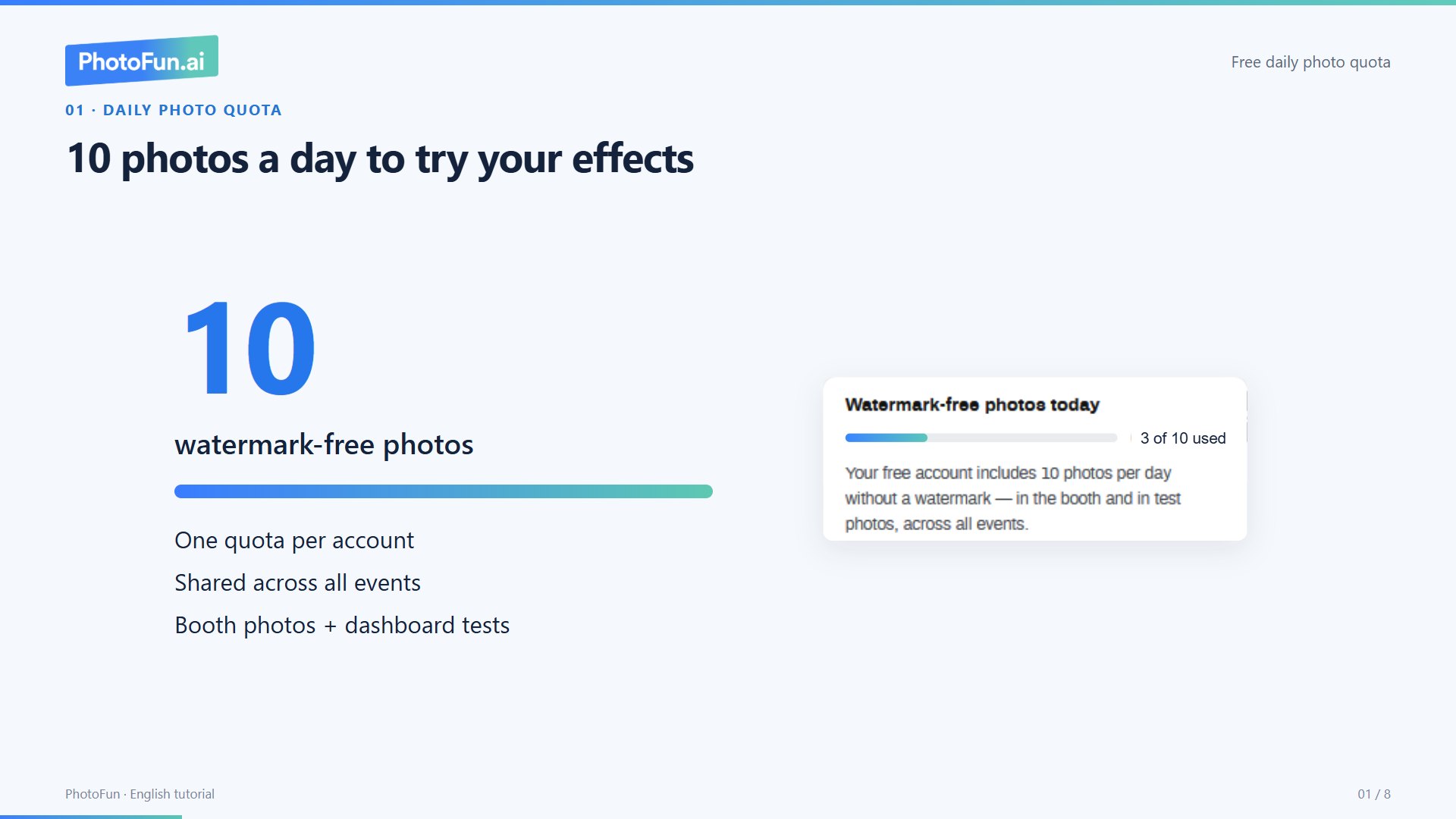
Create your account and try the software for free. You have up to 10 watermark-free photos per day using the included effects, per account. The quota resets at midnight Brasília time. After this limit is reached, photos created with the included effects will have a watermark, unless you have an active plan.
Events without AI remain free, unlimited, and watermark-free. Images generated with external models using your key are paid for directly to the provider, and—without a background change—do not use up your free quota or receive a PhotoFun watermark. If you enable background replacement, the photo will count toward your daily quota. Without an active plan, once you’ve used up that quota, the photo will be watermarked even if you paid the provider for the generation.
You can create an account and set up a test event before signing up. Take a photo to see how the system works on your device.
Create your account and try the software for free. You have up to 10 watermark-free photos per day using the included effects, per account. The quota resets at midnight Brasília time. After this limit is reached, photos created with the included effects will have a watermark, unless you have an active plan.
Events without AI remain free, unlimited, and watermark-free. Images generated with external models using your key are paid for directly to the provider, and—without a background change—do not use up your free quota or receive a PhotoFun watermark. If you enable background replacement, the photo will count toward your daily quota. Without an active plan, once you’ve used up that quota, the photo will be watermarked even if you paid the provider for the generation.
You can test it using the app compatible with your device. Use the device you plan to bring to the event to check the capture, results, and delivery.
Create your account and try the software for free. You have up to 10 watermark-free photos per day using the included effects, per account. The quota resets at midnight Brasília time. After this limit is reached, photos created with the included effects will have a watermark, unless you have an active plan.
Events without AI remain free, unlimited, and watermark-free. Images generated with external models using your key are paid for directly to the provider, and—without a background change—do not use up your free quota or receive a PhotoFun watermark. If you enable background replacement, the photo will count toward your daily quota. Without an active plan, once you’ve used up that quota, the photo will be watermarked even if you paid the provider for the generation.
Printing is handled by PrintFun, which is separate from the capture app. Make sure it's connected to the correct event and the printer you'll be using.
Log in to your PhotoFun account and open the dashboard's home page: https://photofun.ai/panel_home. In the print options, open the PrintFun download and choose to install it from the Microsoft Store, which keeps the app installed and enables automatic updates. The ZIP file is an alternative for when you can't install it from the Store; in that case, extract the folder before running the program, and don't expect the same automatic updates.
The capture device may be different from the computer used for printing. We recommend PrintFun on Windows, with the printer connected via USB or a network; for Mac, check with support regarding the available version.
If the digital image is correct and the problem only appears on paper, use PrintFun's calibration feature: https://youtu.be/dWPyDoxu-3c. Then do a test print to check the results.
Even if you've already tried calibrating, recalibrate in PrintFun's Modern mode and print a test page to check the border. If you've already recalibrated correctly in this mode and the border is still there, please send a photo of the entire page to support for evaluation, if you haven't already. We’ll use the information you’ve already provided about the app, operating system, printer, and paper.
It is intended for physical adjustments such as margins, alignment, and paper size. A disconnected printer, a failure to cut the strip, or an image that has already been digitally cropped require a different diagnosis.
Primary printer: this is the main printer used for all print jobs. You can choose it from the settings screen; every photo you send goes to it first.
Secondary printer: additional option for defining a second printer. When configured and different from the primary printer, the system already sends part of the copies to it if you order multiple copies, automatically splitting the queue between the two printers.
Duplicate printing: a new feature which, when checked, sends the total number of copies to both printers simultaneously. So if you order 2 copies and have different primary and secondary printers, each will print 2 copies, offering redundancy or parallel production.
PrintFun works with leading dye-sublimation photo printers, such as DNP (DS-RX1 and DS-RX1 HS), Citizen (CX-02 and CZ-01), and Mitsubishi (D80), as well as standard inkjet or laser printers. It can be connected via USB or a network.
If you have any questions about a specific model, please contact support before the event.
The frame is part of the digital photo layout. The composition determines how the photos and artwork will be arranged on the print, for example, in strips or as Polaroid-style photos.
When creating or editing an event, choose the photo format and the desired variation. Preview the result before applying the settings to the event.
You can prepare a print layout using your artwork and logo. Send a PNG file with true transparency in the areas where the photos should appear, and use the dimensions specified for the event format.
Check to make sure the areas where the photo should appear are actually transparent, not filled with white. In the print layout, also check whether you want to overlay the artwork or fit the photo inside it.
Use the recommended dimensions specified in the section for the event to which you are submitting the image. For a print layout, the sample file will help you set up the correct format and transparent areas.
The background and frame are applied according to the photo's orientation: portrait (vertical) uses portrait-oriented artwork; landscape (horizontal) uses landscape-oriented artwork. If you uploaded the artwork in one orientation but took the photo in another, it won’t be applied. Take the photo in the same orientation as the artwork, or upload a version that matches the framing used. To use both orientations, upload both versions and test them. If the background or frame does not appear, check this correspondence before reapplying the effect or contacting support; if you’re still unsure about the orientations, ask for clarification without assuming the discrepancy is confirmed.
You can choose which effects you want to enable as options for the event. Run a test to see the selection that will be shown to participants.
You can create as many effects as you want and choose which ones will be enabled for the event. Organize the options based on the audience and the theme.
The system offers a variety of career options, and you can also create effects for the courses you want to feature. Using the college’s or course’s logo and colors helps give the experience a distinct identity.
You can enable only the effects you want to feature at that event. That way, the selection is tailored to the audience and the purpose of the event.
Test the effect using photos that reflect the event's shooting conditions and audience. Review the results before sharing them with participants, and seek support if you encounter any difficulties.
Use a clear image showing the element you want to apply, such as clothing, a pattern, or a logo. In your instruction, explain what to use and what to preserve in the participant’s photo. The image does not need to contain a face when the reference is for clothing, an object, or visual branding. For face-swap effects, choose an image with a visible face and recognizable human features. Test the result with photos representative of your audience before the event.
You can create your own effects with external models under Create Effect. Select External models and check the available providers and access requirements. When you use your own API key, you pay the provider directly for generation. To commission an effect from the PhotoFun team or a custom project, contact us to discuss scope, timelines, and pricing. You do not need to commission custom production to create your own effects.
Available external models: Meta · Google · OpenAI · xAI (Grok).
With a personal key, you pay the provider directly, with no PhotoFun generation or subscription fees.
MUSE (Meta) is provided by PhotoFun and does not require a personal key.
To use a provider with your key:
Prices, limits, and availability depend on the provider. An AI app subscription does not replace the API account required for this connection.
Customized Effects
Our team creates visual effects for your brand or event, with a delivery schedule agreed upon with you.
Custom Projects and Services
We analyze the client's needs and tailor the software and user experience on the kiosk or in the booth, including specific workflows and interactions.
These services are purchased separately. The scope, deadlines, terms of use, and prices are specified in the quote. You do not need to purchase a custom service to create your own effects with external models using an API key.
You can offer digital delivery via QR code and gallery. Participants can view their results on their cell phones, based on the options configured for the event.
In the event editor, find the post-capture interactions and enable the digital delivery QR code display. Save the event and take a test photo to check the screen.
These are different options. You can configure the QR code to appear on the photos and, separately, how it is displayed after the photo is taken and on the delivery pages or in the galleries.
You can use the event's "Big Screen" or "Slideshow" galleries to display the photos on another screen. Choose the appropriate presentation mode and test the display before the event.
The delivery process described here uses QR codes and a photo gallery. The fact that customer service is handled via WhatsApp does not mean that participants’ photos will be automatically sent through that channel.
On the event dashboard, click on the 3-dot button and select "Download". You can download or copy the link to send to the producer.
Yes. On the "Delivery Page" tab, under "Customize," you can:
For a fully white-label delivery—without the PhotoFun brand—you can use your own domain. Contact support to set this up.
The QR code can be displayed after the original photo is uploaded, without waiting for the AI to finish. The version with the effect becomes available after processing.
AI processing requires an internet connection. Test the connection at the event venue and plan a backup in case it becomes unavailable.
If the internet connection is lost, the app can save the photos you've taken and send them once the connection is restored. AI processing and digital delivery depend on the connection; this feature does not allow the app to operate entirely offline.
There is no single timeframe that can be guaranteed for all purposes and conditions. If the wait seems unusually long, please let us know which step has stalled and whether any error messages appeared.
Describe what you were doing and send the error message or a screenshot, if available. Also include the device you were using and whether you were using the app or a web browser, and avoid including passwords or access codes.
Let support know that the event is currently underway, and describe the problem and the steps you've already taken. The team needs to assess the situation; we cannot promise immediate assistance.
We respond on WhatsApp during business hours and by email through our contact form. Outside business hours, we do our best to help as the team is available. We do not provide overnight support.
The limit depends on the data allowance included in your plan. Check the limit and your active devices on the "Connected Devices" page in your account.
Open https://photofun.ai/panel_connected_devices after logging into your account. You can also access this page via the "Online Devices" indicator in the event.
Check the list of connected devices and identify one that is no longer in use. Use the "Sign Out" option next to it to free up the slot, being careful not to disconnect a capture that is in progress.
End photo capture on the device you will no longer be using and check the list of connected devices. Before starting capture on the new device, make sure there is an available slot within your plan's limit.
PrintFun and the capture app have different functions. To check how many slots are being used in your case, review the list of devices and see if that computer also has a capture camera open.
Our files and servers are hosted in Brazil using AWS, applying best practices in security, resilience and scalability. Although they reside in the country, they can be copied to other regions for backup.
You can run simultaneous events as long as you stay within the contracted number of capture devices. Check your account's limit before starting the captures.
You can set up an event for a permanent installation. Make sure your subscription plan is appropriate for the duration of use and adhere to the limit on the number of simultaneous devices.
In the AI Assistant, select "Call on WhatsApp" and confirm the name and number of the person who will take over, even if they're a member of your team. The chat history will be available for customer service on that number, without changing the phone number on file.