On the website, save using only the button for the screen you changed; the first three cases below are alternatives. Then check that the app is using the same account and event. Updating event settings is different from updating the app version or uploading offline photos.
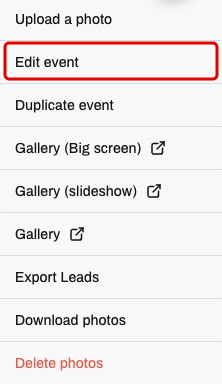
- If you changed event details: on the event dashboard, open Options → Edit event. When you finish editing that screen, select Save event.

- If you changed effects, frames or other capture settings: on the event dashboard, open Customize → Capture. At the bottom of that tab, select Update customization.


- If you changed digital delivery, such as the logo, colors or gallery options: open Customize → Delivery Page. At the bottom of that tab, select Update delivery.


- On the capture device, check the internet connection, account and open event. In the online workflow, leave capture idle so it can receive updated settings; do not expect a change during an active session.
- If the old settings remain, finish the current session, return to the event list and reopen the same event. If you use PrintFun, also check the event selected there.
- Take a new test photo and check the changed options before serving guests.
- A package prepared for offline capture on Windows does not automatically receive website changes. Finish the work in progress, connect to the internet and prepare the event again with the current settings. Preserve sessions and pending work; restoring internet alone does not guarantee photo uploads.