Follow only the situation that matches your difficulty: password, recovery email, verification code or another error. Never send your password, verification code or recovery link through support.
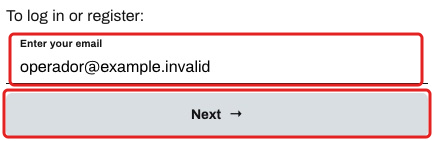
- Open Sign in, enter your account email and select Next. Use your own address, not the example address shown in the image.
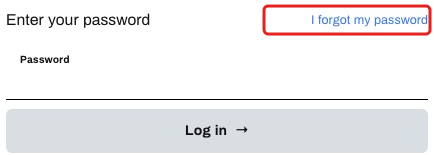
- If you forgot your password or see Incorrect password, select I forgot my password on the password screen. Recovery instructions will be sent to the email you entered.
- If the recovery email has not arrived, check the address you entered and look in Spam or Junk. Request it again when the button becomes available. Do not create another account or change event settings to solve this.
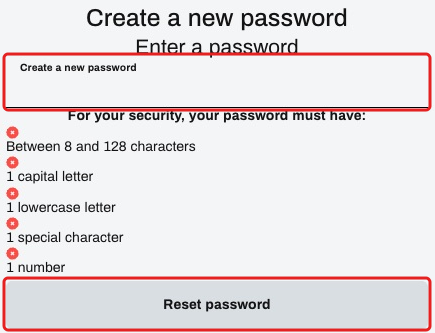
- Open the link received in your email, create a new password following the requirements shown on screen and select Reset password. Do not forward that link to support.
- If the screen asks for a verification code, check the displayed address. If it is wrong, select Change email and enter the correct address.

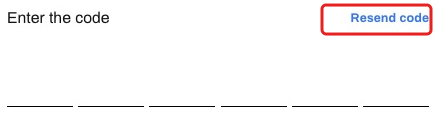
- If the code has not arrived, also check Spam or Junk and select Resend code when available. Enter the code only on the website verification screen.
- For another error or a problem in the app, tell the AI Assistant where it happens, which app or browser you are using and the displayed message. A screenshot can help as long as it does not show a password, code or recovery link. Not every access problem requires a password reset.