On the event page, you can choose which photo versions to download and the date range to include. Review these options before starting the download so you receive the files you need.
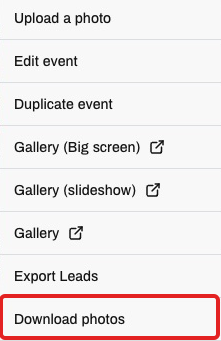
- In Events, choose the event. Open Options → Download photos. Composition is selected initially; check it before downloading.

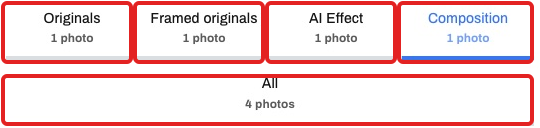
- Choose Originals (without the digital frame and QR overlay), Framed originals, AI Effect, Composition or All. Originals are already resized and may be cropped; they are not raw camera files. Older photos may lack the unframed version, and downloading does not recreate it.
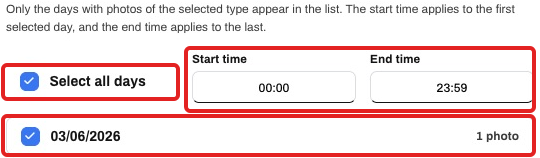
- Select the days to download. The start time applies to the first selected day and the end time to the last; the time range is not repeated each day.
- Click Download to receive the ZIP or Link to copy the address for this selection. Check that the files match the versions and dates you selected. If it fails, try again; the time depends on the number of photos.