An event brings together the capture, effects and delivery settings you will use with guests. Set them up on the website and take a test photo before welcoming participants.
- Sign in and click Start (the house icon) in the site menu. On mobile, it is in the bottom bar. On the Start page, click Create new event.
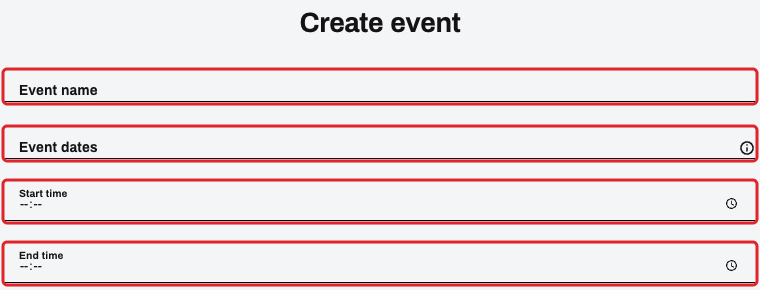
- Fill in Event name, Event dates, Start time and End time.
- Choose whether to enable Apply AI effect to photos and select the photo format. Check the delivery variant and printing option.
- At the bottom of the form, click Create event. The newly created event will open.

- In the new event, open Customize. Adjust Capture and Delivery Page as needed; save each changed tab with Update customization or Update delivery.

- Return to the event and use Camera, or open the event in the capture app. Take a photo and check the result and delivery.